 Traffic Window
Getting started
How Traffic Window works, in plain words, and what setting it up involves. You don't need to remember any of this: once you sign up, the guided setup in the app takes you through every click.
The big picture
Most businesses never find out where their website visitors come from, because the tool that knows, Google Analytics, is built for experts. Traffic Window reads it for you and answers three questions in plain words: how many people visited, where they found you, and what they did next.
Traffic Window never changes your website. The only thing added to it is the Google Analytics code, once.
What you need
- Your website address, like yourbusiness.com.
- A Google account. The one you use for Gmail is fine.
- About 15 minutes, or the email address of whoever looks after your website.
The steps
Sign up
Choose the Solo plan ($5.99 a month, up to five websites). The guided setup opens straight away.
Tell us your website
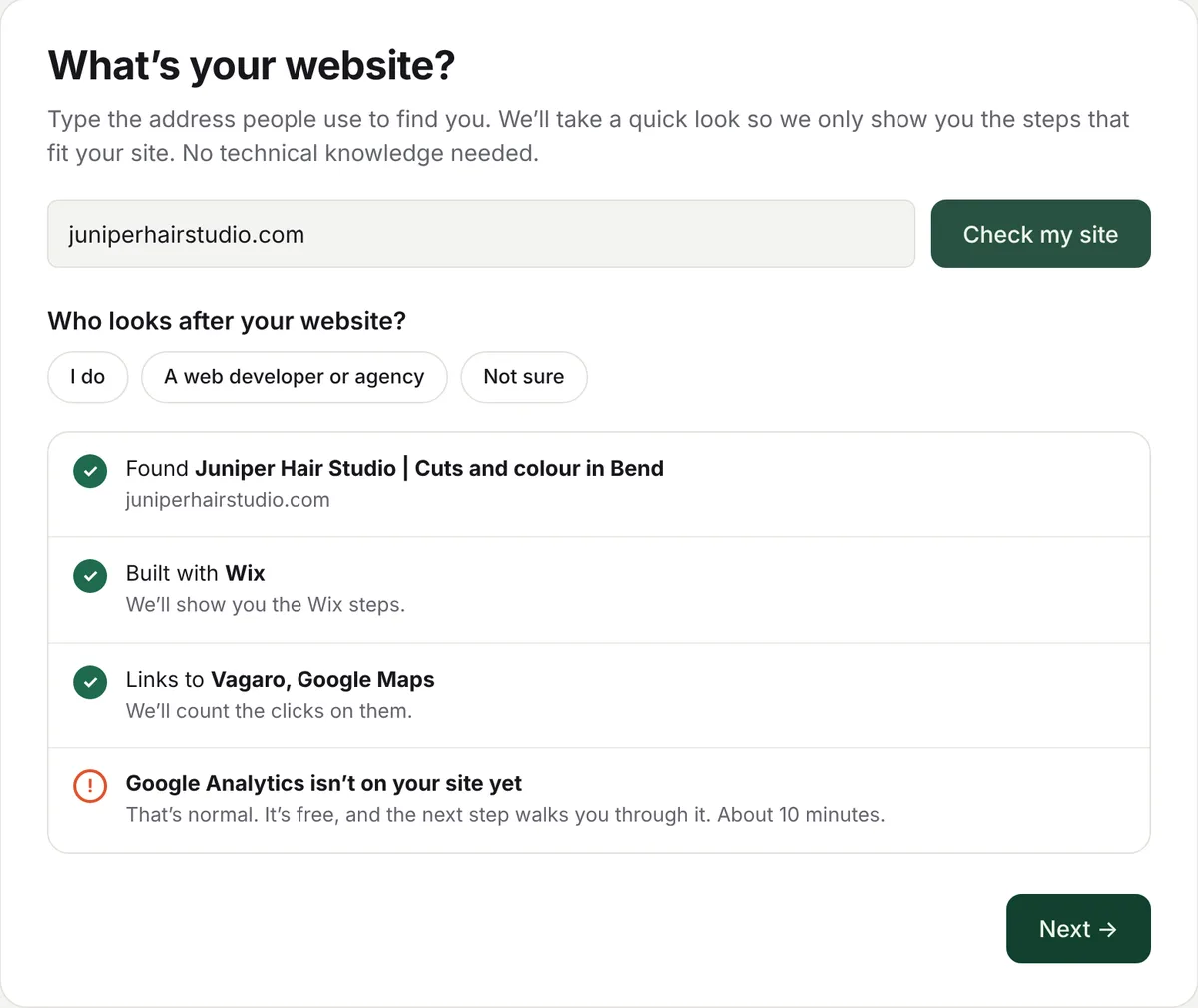
Type its address and say who looks after it. We look at the home page to see which company made it, whether Google Analytics is already there, and which booking, ordering and map links it has.
Make your free Google Analytics code
At analytics.google.com you make an "account" (your business name) and a "property" (your website). Google then shows a code that starts with G-, like G-7XK2P4QL9M. The setup shows each click. About five minutes.
Put the code on your website
How depends on what your website was made with; see the list below. If someone else looks after your website, press "Send it to your web developer" and we email them the code and the exact steps.
Let Traffic Window read it
Press "Bring in sites from Google", sign in with the same Google account and tick your website. That gives Traffic Window permission to read your numbers, and only to read them.
Make your links count, and you're done
Copy your ready-made links into Instagram, your Google listing and the rest (why), and turn on the Monday email. Your first numbers appear within a day.
Your kind of website
Where the code goes, in short. The app has the full click-by-click steps for each, with your own code filled in.
Not sure what your website was made with? The setup checks for you.
Make your links count
Some places don't pass on where a visitor came from. Instagram's app and your Google listing are the usual ones, so those visits land in "Typed it in or saved it". The fix is a link with a label on the end, like yourbusiness.com/?utm_source=instagram&utm_medium=bio. It opens your website as normal, and the visit shows up under the right name.
The setup makes these for your Instagram bio, Google listing, Facebook Page, TikTok, Yelp and emails, with a short note on where each one goes. It also makes a QR code for signs, business cards, flyers and menus: every scan counts as "QR codes and print".
What the names mean
What we can't see
- Bookings and orders made inside other apps. Someone who books in the OpenTable app or orders in DoorDash without visiting your website. Check those in that company's own account.
- Calls and directions straight from Google. People who see your Google listing and call or drive over. Google shows these in your Business Profile.
- Who someone is. You see numbers, towns and sources, never names or email addresses.
Is it safe?
Yes. Traffic Window only ever reads your visitor numbers. It can't change your website, your Google Analytics settings or anything else in your Google account, and we never keep your Google password. You can remove its access any time in Google Analytics.